When you first create a public site collection in Office 365 / Sharepoint online you get a default website that looks like this:

I personally prefer the Sharepoint 2010 site look:

To change the layout, follow the instructions in this blog post:
http://blogs.msdn.com/b/sharepoint__cloud/archive/2011/12/22/change-sharepoint-online-public-site-to-look-like-a-sharepoint-2010-site.aspx
Please check my website http://www.bjornhouben.com to see what it can look like after some minor customizations.
Tags: design, layout, Microsoft, Office 365, Sharepoint, sharepoint 2010, Sharepoint online, Sharepoint public site, Sharepoint site, site
Today I got a mail informing me about free “VMware Your Cloud or Mine” events being hosted in the Netherlands:
- Thursday October 18th in Rotterdam
- Tuesday October 23rd in Eindhoven
- Thursday October 25th in Utrecht
- Tuesday October 30th in Zwolle
Check the link to sign up and get more information about the event.
I will be attending the event in Eindhoven at October 23rd.
Tags: Cloud, Event, Free, ICT, Learning, private, Private Cloud, public, Public Cloud, VMware, VMware your cloud or mine, VMware your cloud or mine event, Your cloud or mine
Besides getting “MCSA: Windows Server 2012” certified , I also passed my Windows 8 exam “70-687 Configuring Windows 8“.
I’m still waiting for the results of 4 beta exams and hope I can pass them and get these certifications:
To be continued ……
PS: For more information about Windows 8 and Windows Server 2012, be welcome to check my “Microsoft Information Flood” post. I’m a bit behind on updates, but it should still prove to be a valuable resource.
Tags: 070-410, 070-411, 070-412, 070-413, 070-414, 070-415, 070-416, 070-687, 071-410, 071-411, 071-412, 071-413, 071-414, 071-415, 071-416, 071-687, Beta, certification, Exam, MCSA, MCSA Windows Server 2012, MCSE Windows Server 2012, Prometric, Windows, Windows 2012, Windows 2012 Server, Windows 8, Windows Server 2012
After desperately checking if my results were in for the beta exams I took, I finally got the great news that I passed the first three beta exams for Windows Server 2012. This means I’m now officially “MCSA: Windows Server 2012” certified.
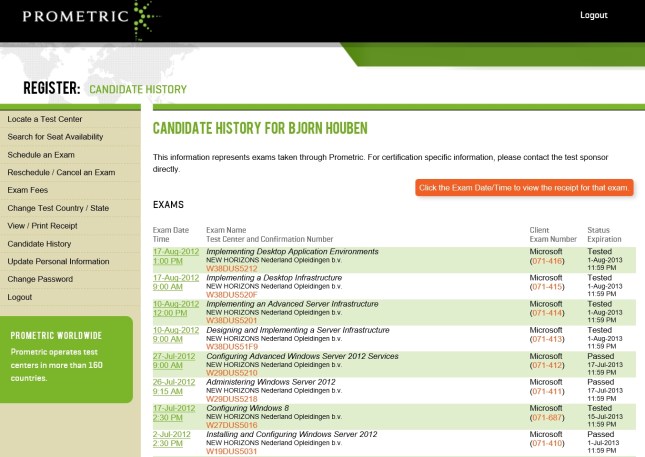
I’m still waiting for the results of the other 5 beta exams *fingers crossed*, but I couldn’t have wished for a better start 🙂
PS: For more information about Windows 8 and Windows Server 2012, be welcome to check my “Microsoft Information Flood” post. I’m a bit behind on updates, but it should still prove to be a valuable resource.
Tags: 070-410, 070-411, 070-412, 070-413, 070-414, 070-415, 070-416, 070-687, 071-410, 071-411, 071-412, 071-413, 071-414, 071-415, 071-416, 071-687, Beta, certification, Exam, MCSA, MCSA Windows Server 2012, MCSE Windows Server 2012, Prometric, Windows, Windows 2012, Windows 2012 Server, Windows 8, Windows Server 2012
Office 365 has been available for quite some time and there have also been two exams available:
70-321 Deploying Office 365
70-323 Administering Office 365
These exams focussed on larger enterprises and features corresponding with this use. More information about these exams can be found in my previous blog post. Keep in mind however that Office 365 is an ever evolving service and that things might have been changed since I wrote this blog post. Even Microsoft has retired and replaced some of their learning content.
Recently a third exam became available that focusses on smaller businesses 74-324 Administering Office 365 for Small Businesses. At the end of August a Jump Start event was held and now the recordings of this event have been made available on Technet Video.
I hope this is useful to you and that it will help you leverage Office 365 better.
Tags: 70-321, 70-323, 74-324, Exam, Exchange online, jump start, jumpstart, Lync online, Microsoft, Office 365, recording, recordings, Sharepoint online, small business, video, video recording, video recordings
When Microsoft creates new (versions of their) software, they also create new exams to become certified. Part of this process includes testing the exams, determining the passing score, getting feedback and improving the exams based on the feedback (deciding which questions to use, removing questions, re-phrasing, etc.). More information can be found here.
To get feedback, Microsoft offers access to these beta exams for free. They do this publicly using by example the born to learn blog or privately using mail to select subject matter experts (SME) based on their profiles on Microsoft Connect. So if you’re interested in taking beta exams, update the information on the Microsoft Connect site to get private invites to the latest beta exams that are relevant to you. More information about the invite procedure can be found on the Born To Learn blog. Also keep in mind that public invites might be limited using a first-come, first served principle so check on a regular basis.
Advantages and disadvantages of taking beta exams:
+ It is free if you received an invite. Nowadays you can also take beta exams if you haven’t had an invite, but then you need to pay for the exam.
+ You have a chance to become one of the first people to become certified for the new software.
+ If you pass a beta exam, you passed it legitimately because there are no answers to download online.
+ Even if you fail the beta exam, you’ve still learned a lot about the new (version of the) software.
– In general there are no books available yet and you have to get all your information from hands-on experience, blogs, technet, websites, etc.
– The time frame you have to prepare for the exams can be (very) limited. For example with the last invites for the Server 2012 beta exams I had only 2 weeks to prepare for multiple exams.
– After you’ve taken a beta exam, it might take 2-3 months before you get the result.
Beta exams I’ve taken recently include those for Windows 8, Windows Server 2012, System Center 2012 and Office 365. I expect the next beta exams to cover mainly Office 15/Office 2013 related products like by example Sharepoint, Exchange, Lync. So if you’re interested in these beta exams be sure to keep a close eye on the beta exams and start working with and learning about the products already.
I hope this was informative and that it well help you and/or your company gain a competitive advantage.
Tags: Beta, certification, certified, certify, Exam, Exchange, Learning, Lync, Microsoft, microsoft learning, Office, Office 365, Sharepoint, sme, subject matter expert, System Center, Windows, Windows 2012, Windows 2012 Server, Windows 8, Windows Server 2012
Thanks to the internet and the great communities and companies all over the world, there are a lot of great applications and tools available. In the past years I’ve found and used numerous of them for all kind of purposes, both personally and professionally.
Because there are so many of them, it is hard to remember all of them. That’s why I decided to create a list on my Office 365 SharePoint website for all people to see and use:
http://bjornhouben-web.sharepoint.com/Lists/Applications
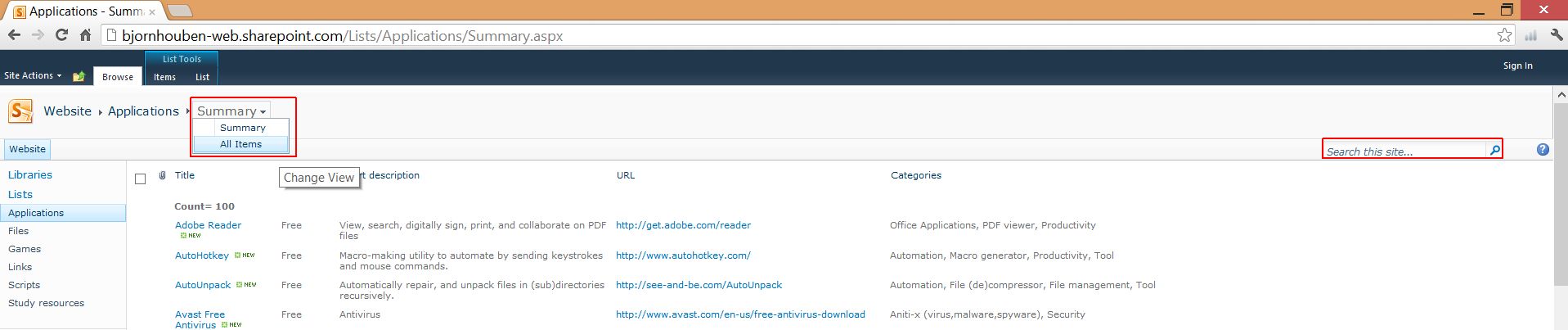
The summary view is shown by default for this list. If you want to change to a different view, click on “Summary” at the top and choose the view you want to use instead:
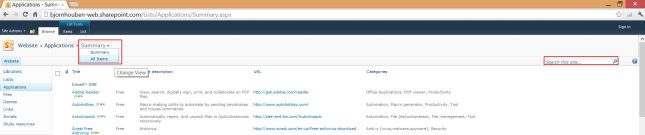
I put a lot of effort in providing metadata for these applications, so you can search and filter more easily.

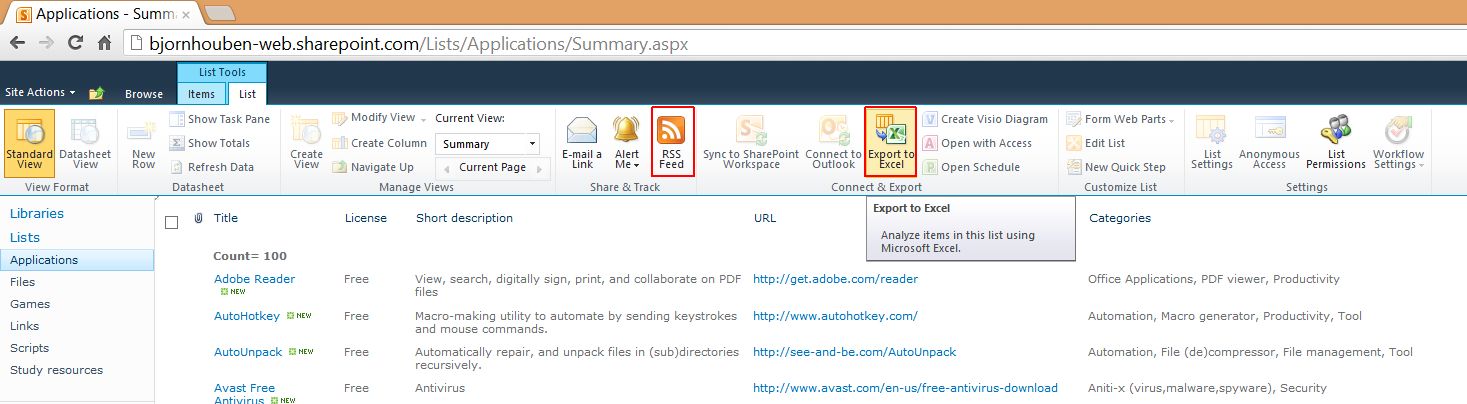
If you’d like, you can also export it to Excel. You can even subscribe to the RSS feed so you will be alerted when new applications have been added.

I hope you like the list. If you know of other great applications or tools that I have not yet listed, please let me know so I can add them.
Thanks in advance.
PS: I will update the other lists in the future as well. So they will work in a similar way and will also contain a lot of useful content.
Tags: Applications, filter, list, Sharepoint list, tools
Office 365 introduction
Office 365 basically provides you with collaboration services consisting of the following components:
- E-mail (Exchange online)
- Instant messaging (Lync online)
- Internal and external websites (Sharepoint online)
- Office (either locally installed or through web apps).
I really like this service offering because of the following reasons:
- All services (and servers) are hosted by Microsoft. This means you don’t have to invest in servers, software. You also don’t have to do the initial setup nor do you have to maintain the servers, operating system and software. This all helps you to be able to focus on your core business.
- You pay monthly fees, which are predictable.
- Since you are using a cloud based service, the functionality is continuously being improved and newer versions are being provided at no additional cost. Currently Office 2013 Preview is available for testing only on Office 365, but when it is released it will probably also find its way to the current Office 365 users.
But don’t take my word for it, just try it for yourself and see if and how you can benefit from it.
Configuring anonymous access to sharepoint lists on Office 365 (Sharepoint online)
Even though I like Office 365, it is far from perfect. For example, one of the reasons for me to get and Office 365 subscription was because (I thought) it would let me easily share website links, applications, scripts using sharepoints lists to the internet.
In reality however, the public facing sharepoint site was very limited and did not provide an easy way to do this. Another option was to create these lists on my “internal” sharepoint site and then provide access to people by inviting them by e-mail. This would however limit my audience / knowledge sharing potential.
After searching for people with similar issues, I came across a workaround that would help me accomplish my goals: http://anonymous365.codeplex.com
Steps to configure a sharepoint list on my public facing sharepoint site that is accessible for anonymous users:
- Download the anonymous365 sharepoint solution from http://anonymous365.codeplex.com
- Go to the “Site Settings” of your public facing site using by example :
http://bjornhouben-web.sharepoint.com/_layouts/settings.aspx
- Go to the “Galleries” section and go to “Solutions“.
- Click under the “Name” colume and in the ribbon interface under the “Solutions” tab choose “Upload Solution“.
- Browse to the previously downloaded anonymous365 sharepoint solution : “Wsp365.Anonymous.wsp” and press “OK“.
- Check the checkbox of the uploaded “Wsp365.Anonymous.wsp” and in the ribbon interface under the “Solutions” tab choose “Activate“.
- The go to the “All Site Content” of your public facing site using by example:
http://bjornhouben-web.sharepoint.com/_layouts/viewlsts.aspx
- Press “Create“
- Choose the list type you want, enter a name and press “Create“.
- Then in the ribbon interface under “List Tools” and “List” press the button “Anonymous Access“
- Choose what access you want to give anonymous users for this specific list and press “OK”.
PS: You can also use a list to share files using the attachments.
Closing thoughts
I hope this explanation was helpful and I love to get feedback. Because the groundwork is done now, I can focus on the actual knowledge sharing by populating the lists with content. So you can expect some major updates soon on both my blog posts and the lists below:
Tags: anonymous, anonymous access, Cloud, Microsoft, Office 365, Public Cloud, Sharepoint list, Sharepoint online, sharepoint solution
Tags: 70-321, 70-323, Beta, Cloud, Exam, Exchange online, ICT, Learning, Lync online, Microsoft, Office 365, Sharepoint online




 blog.bjornhouben.com


