RSS

Category Archives: Microsoft

My ever growing collection of applications and tools

Thanks to the internet and the great communities and companies all over the world, there are a lot of great applications and tools available. In the past years I’ve found and used numerous of them for all kind of purposes, both personally and professionally.

Because there are so many of them, it is hard to remember all of them. That’s why I decided to create a list on my Office 365 SharePoint website for all people to see and use:
http://bjornhouben-web.sharepoint.com/Lists/Applications

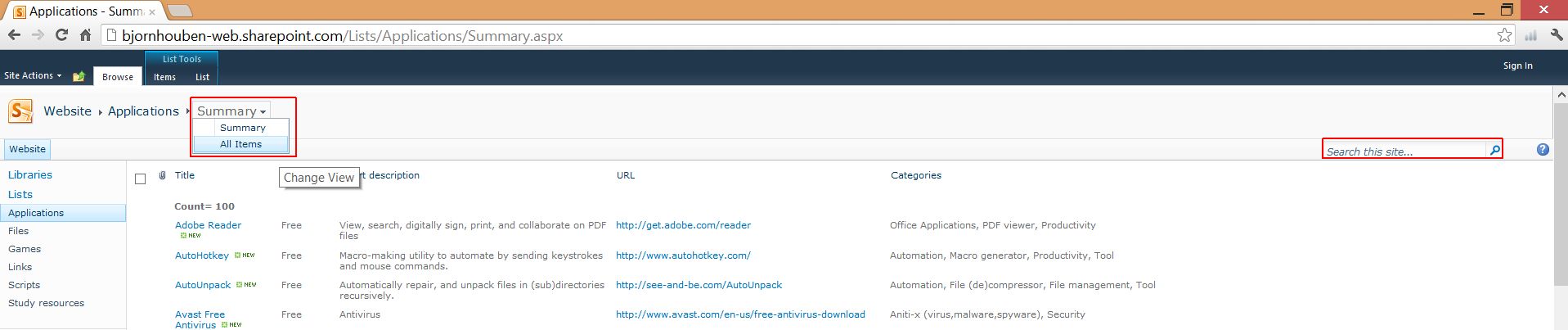
The summary view is shown by default for this list. If you want to change to a different view, click on “Summary” at the top and choose the view you want to use instead:
applications_list_change_view

I put a lot of effort in providing metadata for these applications, so you can search and filter more easily.
applications_list_category_filter

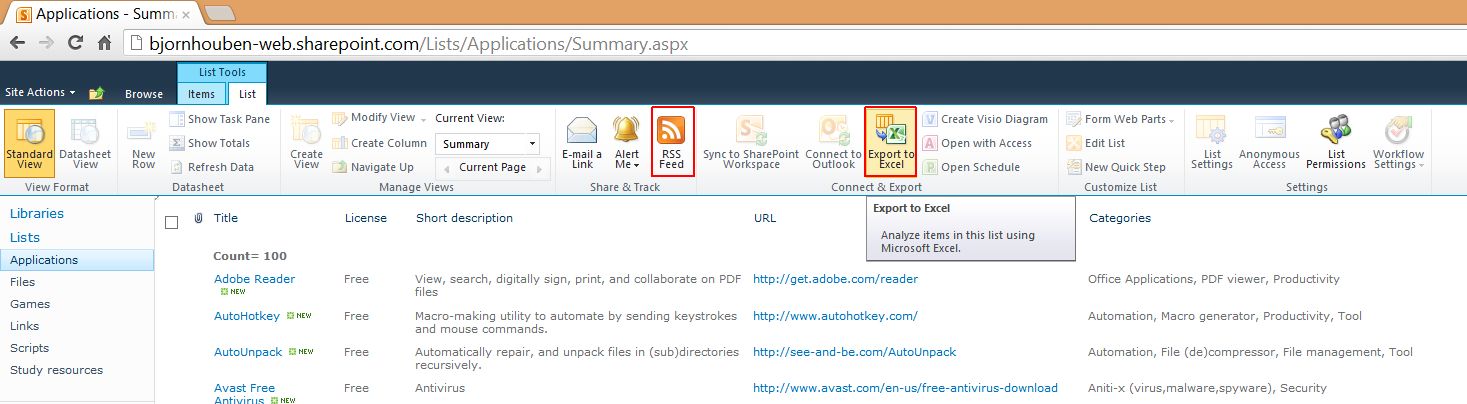
If you’d like, you can also export it to Excel. You can even subscribe to the RSS feed so you will be alerted when new applications have been added.

applications_list_export_and_RSS_feed

I hope you like the list. If you know of other great applications or tools that I have not yet listed, please let me know so I can add them.

Thanks in advance.

PS: I will update the other lists in the future as well. So they will work in a similar way and will also contain a lot of useful content.


Tags: , , , ,

Easily rename downloaded movies using powershell

Context

As most people, I often complain about not having sufficient time. It also doesn’t help that I have a lot of hobbies and interests. Because of this I decided to combine my hobbies and interests in such a way it would eventually save me time.

Basically I decided to learn powershell scripting by automating the task of renaming downloaded movies. These need to be in a specific format for reliable use with the movie jukebox called Yet Another Movie Jukebox (YAMJ). As a result this will save me a lot of time in the future.

Concept for the script

The file names of most movies I download are mostly in the following format:
The.Devils.Advocate.1997.UNRATED.DC.720p.BluRay.X264-AMIABLE.mkv
<movie.name>.<movie release year>.<metadata>.<metadata>…..<last.metadata>.<file extension>

What is important for YAMJ to work correctly is basically the movie name and the year (just in case there are movies with the same name, but released in a different year). So basically my preferred output would be:
The Devils Advocate 1997.mkv

To realise this, conceptually the following will be done for all files in a specific folder:

  1. Determine the current file extension and save it to a variable.
  2. Remove all dots “.” from the file name.
  3. Determine if there is a year notation in the file name (by example 1997).
  4. If there is no year notation found, don’t do anything else (file does not meet the expected format).
  5. If the year notation is found, remove everything from the file name after the year notation and re-add the file extension.

The script itself

The script itself can be found on my sharepoint list :
http://bjornhouben-web.sharepoint.com/Lists/Scripts/

Closing thoughts

I hope this will help home users to see the advantages of scripts, use them and benefit from it. For ICT professionals I also hope that it will help them get a better understanding of Powershell. Because in my opinion Powershell is getting increasingly important both for Microsoft and non Microsoft products (by example VMware).

I’d love to get feedback about this post and hope to receive some replies.


Tags: , , , , , , , , , , ,

Provide anonymous access to sharepoint lists on Office 365 (Sharepoint online)

Office 365 introduction

Office 365 basically provides you with collaboration services consisting of the following components:

  • E-mail (Exchange online)
  • Instant messaging (Lync online)
  • Internal and external websites (Sharepoint online)
  • Office (either locally installed or through web apps).

I really like this service offering because of the following reasons:

  • All services (and servers) are hosted by Microsoft. This means you don’t have to invest in servers, software. You also don’t have to do the initial setup nor do you have to maintain the servers, operating system and software. This all helps you to be able to focus on your core business.
  • You pay monthly fees, which are predictable.
  • Since you are using a cloud based service, the functionality is continuously being improved and newer versions are being provided at no additional cost. Currently Office 2013 Preview is available for testing only on Office 365, but when it is released it will probably also find its way to the current Office 365 users.

But don’t take my word for it, just try it for yourself and see if and how you can benefit from it.

Configuring anonymous access to sharepoint lists on Office 365 (Sharepoint online) 

Even though I like Office 365, it is far from perfect. For example, one of the reasons for me to get and Office 365 subscription was because (I thought) it would let me easily share website links, applications, scripts using sharepoints lists to the internet.

In reality however, the public facing sharepoint site was very limited and did not provide an easy way to do this. Another option was to create these lists on my “internal” sharepoint site and then provide access to people by inviting them by e-mail. This would however limit my audience / knowledge sharing potential.

After searching for people with similar issues, I came across a workaround that would help me accomplish my goals: http://anonymous365.codeplex.com

Steps to configure a sharepoint list on my public facing sharepoint site that is accessible for anonymous users:

  1. Download the anonymous365 sharepoint solution from http://anonymous365.codeplex.com
  2. Go to the “Site Settings” of your public facing site using by example :
    http://bjornhouben-web.sharepoint.com/_layouts/settings.aspx
  3. Go to the “Galleries” section and go to “Solutions“.
  4. Click under the “Name” colume and in the ribbon interface under the “Solutions” tab choose “Upload Solution“.
  5. Browse to the previously downloaded anonymous365 sharepoint solution : “Wsp365.Anonymous.wsp” and press “OK“.
  6. Check the checkbox of the uploaded “Wsp365.Anonymous.wsp” and in the ribbon interface under the “Solutions” tab choose “Activate“.
  7. The go to the “All Site Content” of your public facing site using by example:
    http://bjornhouben-web.sharepoint.com/_layouts/viewlsts.aspx
  8. Press “Create
  9. Choose the list type you want, enter a name and press “Create“.
  10. Then in the ribbon interface under “List Tools” and “List” press the button “Anonymous Access
  11. Choose what access you want to give anonymous users for this specific list and press “OK”.

PS: You can also use a list to share files using the attachments.

Closing thoughts

I hope this explanation was helpful and I love to get feedback. Because the groundwork is done now, I can focus on the actual knowledge sharing by populating the lists with content. So you can expect some major updates soon on both my blog posts and the lists below:


Tags: , , , , , , , ,

Windows 8 – GUI (Graphical User Interface) help

For those people unwilling to read the entire post, here’s a direct link to my own list of operations and a description of how to perform them using specific input methods.

Context

In the past the Windows user interface has been changed. In hindsight I would classify these changes as evolutionary (Windows 95, 98, XP, Vista, Windows 7). I did however notice that a lot of people still had and many still have trouble working with it. Most people however are currently able to perform those things they want to be able to do. With Windows 8 however, a lot has changed and people need to re-learn how they can do what they want to do. I think this will be intimidating for many people and will probably also prevent people from upgrading for some time. This video should give new users an idea of what the new interface looks like. You can also check other links on this page. Also check this video to get an even better feeling of how to use the new user interface. If you are willing to spend some more time on getting used to Windows 8, you can also check the videos from Lynda.com Windows 8 Consumer Preview First Look. With this blog post I hope I can:

  • Help people understand what has changed without going in too much detail.
  • Provide insight in what options there are to fully leverage potential/productivity.
  • Provide practical tips and tricks to help people enjoy using Windows 8.

Read the rest of this entry »

 
3 Comments

Posted by on August 14, 2012 in ICT, Microsoft, Windows, Windows 8


Tags: , , , , , , , , , , , ,

Windows 8 – Installing Windows 8 apps (formerly known as Metro apps)

Context

With Windows 8, the Windows store has been introduced. Using the store you can search, browse and install published Windows 8 apps. Apps in the store can either be free or paid and incldues trial options. Apps also need to allow you to install them on a minimum of five Windows 8 enabled devices without additional payment/fees.

These apps are tied to your account and can be installed on multiple devices you own provided you use the same account. This may come in handy when you by example:

Showing apps tied to your account and installing them

  1. Go to the Windows store
  2. Toggle the AppBar by right clicking, pressing windows key + Z or swiping down from the top of the screen.
  3. Select “Your Apps” 
  4. Choose from the dropdown box: “Apps not installed on this PC”
  5. Select the apps you want to install and select the “Install” button.
 
Leave a comment

Posted by on August 14, 2012 in ICT, Microsoft, Windows, Windows 8


Tags: , , , , ,

Windows 8 – Sideloading application example (Wordfeud)

Context

One of the negative aspects of working with new technologies is that sometimes you miss some stuff that what available with older versions.

As an example, the Pinball FX2 game/app was in the store of the Windows 8 Consumer Preview, but was not available in the Windows 8 Release Preview. Another example is Wordfeud which was available in the store of the Windows 8 Release Preview, but is not (yet) in the store of the Windows 8 RTM.

[EDIT]

Apparently you can also:

  1. Go to the Windows store
  2. Toggle the AppBar by right clicking, pressing windows key + Z or swiping down from the top of the screen.
  3. Select “Your Apps” 
  4. Choose from the dropdown box: “Apps not installed on this PC”
  5. Select the apps you want to install and press the “Install” button.

[EDIT]

During my time with Wordfeud in the Windows 8 Release Preview I did however see that the developer provided the files to sideload the application. Sideloading means that you can install apps directly without going through the Windows store. More information about sideloading can be found here.

For sideloading Wordfeud, perform the following actions

  1. Run Windows Powershell as administrator
  2. Enable powershell script execution using: set-executionpolicy remotesigned
  3. Download the latest Wordfeud build from http://dl.dropbox.com/u/13365029/WordfeudMetro/index.html
  4. Extract the files to a folder by example : C:\WordfeudMetro_1.0.0.9_AnyCPU_Debug
  5. From within Windows Powershell go to the folder using: cd C:\WordfeudMetro_1.0.0.9_AnyCPU_Debug
  6. Execute the Powershell script by typing: .\Add-AppDevPackage.ps1

For removing the sideloaded Wordfeud, perform the following actions

  1. Run Windows Powershell as administrator
  2. From within Windows Powershell remove the application using: Get-AppxPackage | where PublisherId -eq csykjp4qexh44 | Remove-AppxPackage
 
Leave a comment

Posted by on August 13, 2012 in ICT, Microsoft, Windows, Windows 8


Tags: , , , , , , , ,

Microsoft Skydrive improved, but freely available space decreased from 25GB to 7GB for new users. Existing users need to perform manual action to keep 25GB.

Microsoft SkyDrive is decreasing the storage available to users from 25GB to 7GB. Existing users however can keep the 25GB but manual action is required: http://ludwigkeck.wordpress.com/2012/04/23/get-your-free-25-gb-of-skydrive-storage/

Also keep in mind that Microsoft Skydrive will become more and more integrated with Windows 8 and that they have also released an application (like dropbox) that also works for previous Windows versions. For more information check:

UPDATE:

Google drive has also launched and also dropbox is making improvements to its service. Before deciding to use any service however, compare their terms of use: http://www.theverge.com/2012/4/24/2972228/cloud-storage-terms-of-service-comparison-avoid-google-drive

 
Leave a comment

Posted by on April 24, 2012 in Cloud, ICT, Microsoft, Public Cloud


Tags: , , ,

Windows 8 Consumer Preview first impressions

As most of the IT people already know, Windows 8 Consumer Preview has been released which can be used until January 15, 2013. More information and download links can be found here: http://preview.windows.com/

Even though there are a lot of changes as shown in this article, the main areas I’m interested in are:

  • Metro interface
  • Powershell 3.0
  • Hyper-V 3.0 on the client

As a side note, the Pinball FX2 game has been included, which is one of my favourite pinball games. The Sorcerer’s Lair Table will be free for all Windows 8 users and more pinball tables are expected in the future.

Besides the Windows 8 Consumer Preview, a beta for the Windows 8 Server has also been released, which I will cover at another time.

Metro interface

Since I don’t own a Windows Phone 7, the Metro interface is new to me. I have to say it did not take that much time getting used to, but I did find this video invaluable to getting started:
http://channel9.msdn.com/Blogs/Windows-Blog/Windows-8-Consumer-Preview-Demo

My first impression about the Metro interface is that it looks nice. I’m still in doubt about how useful it will be, but this all depends on the applications being created so it’s a bit early to tell.

Also as a long time Windows user I often find myself reverting to desktop mode. In desktop mode another thing to get used to, is that there is no start menu. By creating desktop shortcuts or  pinning documents to the taskbar this works fine, but it still feels strange.

Powershell 3.0

With Powershell 3.0 some of the major improvements include:

  • Much improved Integrated Script Editor (ISE)
  • More cmdlets (pre-defined commands)
  • Simplified use

For some more information about some of the new or improved feature you can also check:
http://www.computerperformance.co.uk/powershell/index_v3.htm
http://jdhitsolutions.com/blog/2012/02/powershell-3-0-easy-rider/

Hyper-V 3.0

Windows 8 will be the first client OS where you can install Hyper-V. This is great, because as a Microsoft administrator I want to test new operating systems and applications using a virtual testing environment for that. I could of course dual-boot my PC with both a client OS and a server OS, but this is inconvenient. I could also use VMware workstation or any other virtualization solutions, but this causes additional overhead since it is not a type 1 hypervisor. Also Microsoft provides pre-configured environments in the VHD format, which would require additional effort to get them to work correctly in other virtualization solutions.

One of the downsides of the new Hyper-V 3.0 however is that you need a 64-bit processor with Second Level Address Translation (SLAT). With Intel support for this is through a technology called Extended Page Tables (EPT) while with AMD it’s called Nested Page tables (NP). For intel it requires you to have an Intel Core i3, i5, i7 or newer. You can also check with coreinfo if your CPU is supported.

Since my current pc does not meet this requirement, I have not been able to check Hyper-V 3.0 yet. Due to a misstake by Dell however, I expect to be able to test it on my new laptop next week.

For more information regarding new and improved Hyper-V features, please check this article at WindowsITPro.com.
 
Leave a comment

Posted by on March 3, 2012 in Windows, Windows 8


Tags: , , ,

System Center 2012 Configuration Manager beta exam

Exam experience

System Center 2012 Configuration Manager exam:
70-243 Administering and Deploying System Center 2012 Configuration Manager

*Taken 23-02-2012* and passed

Preparation materials

Configuration Manager

System Center 2012 Configuration Manager Survival Guide
MVP Raphael Blog

Nico Sienaert’s System Center Blog

Systemcenterblog.nl
MS Tech Blog
Windows-Noob.com step-by-step guides
Technet Virtual Labs
Configuration Manager TechCenter

Configuration Manager TechNet Library

System Center Configuration Manager 2012 Beta”How Do I?” Videos

System Center Configuration Manager 2012 Product Page

Microsoft Events regarding System Center Configuration Manager 2012
System Center Configuration Manager 2012 Forum
System Center Configuration Manager 2012 Blog
Technical Reference for Site Administration in Configuration Manager (ports, log files, accounts)

[update 18-06-2012]
Microsoft System Center Self-Study Guide Part I – III

Get Certified on System Center 2012 Configuration Manager (Exam 70-243) with this FREE Study Guide!

ConfigMgr 2012: Upcoming Enhancements in SP1

Announcing Availability of System Center 2012 SP1 Community Technology Preview 2 (CTP2)

System Center 2012 SP1 CTP2 Now Available

New and improved in 2012

http://technet.microsoft.com/en-us/library/gg699359.aspx

Read the rest of this entry »


Tags: , , , , , , , , , ,

Office 365 beta exams experience

Exam experience

Today I took the Office 365 beta exams:
70-321 Deploying Office 365
70-323 Administering Office 365

In my opinion the 70-323 was pretty tough, while the 70-321 was a lot easier. I expected it to be the other way around though. Now unfortunately I have to wait for the results (normally within 8 weeks).

Quick exam reminders I studied before the exams

  1. Deployment phase
    1. Office 365 Deployment Phases
    2. Office 365 Deployment Schedule
  2. Plan phase
    1. Key activities
    2. Office 365 Enterprise License Plans
    3. Office 365 Administration roles
    4. Exchange Hybrid Solution Infrastructure overview picture
    5. High Level Tasks For Exchange Hybrid Deployment
  3. Prepare phase
    1. Key activities
    2. Update schema for Exchange 2010 :
      cd c:\exchangeserver2010sp1 and then setup /preparead
    3. Office 365 ports, ips and urls
    4. Exchange Hybrid Deployment Domain and Host Names Worksheet
    5. Configure SSO with ADFS:
      Connect-MsolService –Credential $cred
      Set-MsolAdfscontext -Computer <AD FS 2.0 primary server>
      New-MsolFederatedDomain –DomainName <domain>
    6. Configure dirsync (separate server and when less than
      50.000 objects SQL 2008 Express will do).
    7. Mail migration types and explanation E-mail migration overview (virtual labs)
  4. Migrate phase
    1. Key activities
    2. Post-deployment services testing plan

Resources used as preparation


Tags: , , , , , , , , , , ,