Currently, there are many technological advancements taking place every day. To keep up with them is already very hard. To make it a bit easier I use RSS feeds to quickly filter what I think might be of importance to me.
A list of the RSS feeds I currently use can be found here , but you can also download an XML export of my RSS feeds here for easy import to your preferred RSS reader (assuming it supports XML import). I also advise you to check Microsoft’s RSS feed index so you can customize it to your own needs.
I personally use Google Reader for my RSS feeds because then my RSS feeds will be accessible from everywhere as long as I have a browser and an internet connection. When you are often on the road without an active internet connection, a dedicated client with cached articles from the RSS feed might also come in handy.
PS: The Microsoft blog rss feed had many articles added daily and can be hard to keep up with, but you can pretty quickly weed out duplicate articles and articles in foreign languages.
I hope this has been helpful to you.
Tags: bookmark, bookmarks, Cloud, developments, ESX, ESXi, favorite, favourite, gadget, Gadgets, ICT, Microsoft, news, rss, rss feed, technology, virtualization, VMware, vSphere, web site, web sites, website, websites, Windows
Microsoft is hosting a free jump start for those looking to upgrade their current Windows 2008 certification by taking exam “70-417 Upgrading Your Skills to MCSA Windows Server Windows Server 2012”.
I’ve attended some jump starts in the pasts and I really like them, so don’t miss out. Even though I’m already certified, I will be attending it as well. You will always learn new stuff AND you get the chance to get answers to any questions you still have.
Tags: 70-417, 70-417 Upgrading Your Skills to MCSA Windows Server Windows Server 2012, Free, jump start, Server, Upgrading Your Skills to MCSA Windows Server Windows Server 2012"., Windows, Windows 2012, Windows 2012 Server, Windows Server 2012
Besides getting “MCSA: Windows Server 2012” certified , I also passed my Windows 8 exam “70-687 Configuring Windows 8“.
I’m still waiting for the results of 4 beta exams and hope I can pass them and get these certifications:
To be continued ……
PS: For more information about Windows 8 and Windows Server 2012, be welcome to check my “Microsoft Information Flood” post. I’m a bit behind on updates, but it should still prove to be a valuable resource.
Tags: 070-410, 070-411, 070-412, 070-413, 070-414, 070-415, 070-416, 070-687, 071-410, 071-411, 071-412, 071-413, 071-414, 071-415, 071-416, 071-687, Beta, certification, Exam, MCSA, MCSA Windows Server 2012, MCSE Windows Server 2012, Prometric, Windows, Windows 2012, Windows 2012 Server, Windows 8, Windows Server 2012
After desperately checking if my results were in for the beta exams I took, I finally got the great news that I passed the first three beta exams for Windows Server 2012. This means I’m now officially “MCSA: Windows Server 2012” certified.
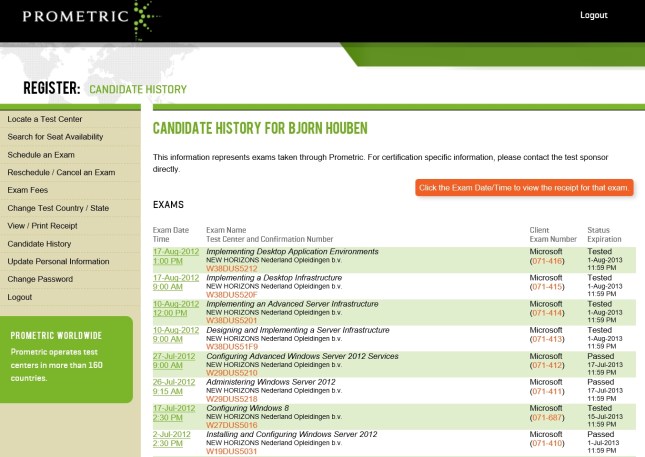
I’m still waiting for the results of the other 5 beta exams *fingers crossed*, but I couldn’t have wished for a better start 🙂
PS: For more information about Windows 8 and Windows Server 2012, be welcome to check my “Microsoft Information Flood” post. I’m a bit behind on updates, but it should still prove to be a valuable resource.
Tags: 070-410, 070-411, 070-412, 070-413, 070-414, 070-415, 070-416, 070-687, 071-410, 071-411, 071-412, 071-413, 071-414, 071-415, 071-416, 071-687, Beta, certification, Exam, MCSA, MCSA Windows Server 2012, MCSE Windows Server 2012, Prometric, Windows, Windows 2012, Windows 2012 Server, Windows 8, Windows Server 2012
When Microsoft creates new (versions of their) software, they also create new exams to become certified. Part of this process includes testing the exams, determining the passing score, getting feedback and improving the exams based on the feedback (deciding which questions to use, removing questions, re-phrasing, etc.). More information can be found here.
To get feedback, Microsoft offers access to these beta exams for free. They do this publicly using by example the born to learn blog or privately using mail to select subject matter experts (SME) based on their profiles on Microsoft Connect. So if you’re interested in taking beta exams, update the information on the Microsoft Connect site to get private invites to the latest beta exams that are relevant to you. More information about the invite procedure can be found on the Born To Learn blog. Also keep in mind that public invites might be limited using a first-come, first served principle so check on a regular basis.
Advantages and disadvantages of taking beta exams:
+ It is free if you received an invite. Nowadays you can also take beta exams if you haven’t had an invite, but then you need to pay for the exam.
+ You have a chance to become one of the first people to become certified for the new software.
+ If you pass a beta exam, you passed it legitimately because there are no answers to download online.
+ Even if you fail the beta exam, you’ve still learned a lot about the new (version of the) software.
– In general there are no books available yet and you have to get all your information from hands-on experience, blogs, technet, websites, etc.
– The time frame you have to prepare for the exams can be (very) limited. For example with the last invites for the Server 2012 beta exams I had only 2 weeks to prepare for multiple exams.
– After you’ve taken a beta exam, it might take 2-3 months before you get the result.
Beta exams I’ve taken recently include those for Windows 8, Windows Server 2012, System Center 2012 and Office 365. I expect the next beta exams to cover mainly Office 15/Office 2013 related products like by example Sharepoint, Exchange, Lync. So if you’re interested in these beta exams be sure to keep a close eye on the beta exams and start working with and learning about the products already.
I hope this was informative and that it well help you and/or your company gain a competitive advantage.
Tags: Beta, certification, certified, certify, Exam, Exchange, Learning, Lync, Microsoft, microsoft learning, Office, Office 365, Sharepoint, sme, subject matter expert, System Center, Windows, Windows 2012, Windows 2012 Server, Windows 8, Windows Server 2012
Since Microsoft has recently released their latest server OS calles Windows Server 2012, they’re hosting free one day “IT Camps Windows Server 2012” events.
Check the link below for more information about the event contents, dates and locations:
http://www.microsoft.com/netherlands/evenementen/event.aspx?eventid=675&date=20121016&eventtype=TechNet#locations
I’ve attended an IT camp for Hyper-V in Server 2008 R2 in the past and I liked the concept. Back then however there were some points of improvements with regards to preparation and the number of attendees that could actively participate in the hands-on labs. I have learned from this experience and will not miss out on this again.
I’m going to attend the Eindhoven event on the 16th of October, so please let me know if you’re attending this event as well so we can meet up.
PS: For participating in the hands-on labs you need to bring your own laptop that meets the requirements stated in the event description.
Tags: Active Directory, AD, Cluster, Clustering, DAC, Dynamic Access Control, Eindhoven, Event, Events, Free, hans-on, Hyper-V, Info Support, IT Camp, IT Camp Windows Server 2012, lab, labs, Master IT, Master IT Training, Microsoft, Powershell, Server Manager, Storage Spaces, The Netherlands, Training, Windows 2012, Windows 2012 Server, Windows Server 2012
Context
As most people, I often complain about not having sufficient time. It also doesn’t help that I have a lot of hobbies and interests. Because of this I decided to combine my hobbies and interests in such a way it would eventually save me time.
Basically I decided to learn powershell scripting by automating the task of renaming downloaded movies. These need to be in a specific format for reliable use with the movie jukebox called Yet Another Movie Jukebox (YAMJ). As a result this will save me a lot of time in the future.
Concept for the script
The file names of most movies I download are mostly in the following format:
The.Devils.Advocate.1997.UNRATED.DC.720p.BluRay.X264-AMIABLE.mkv
<movie.name>.<movie release year>.<metadata>.<metadata>…..<last.metadata>.<file extension>
What is important for YAMJ to work correctly is basically the movie name and the year (just in case there are movies with the same name, but released in a different year). So basically my preferred output would be:
The Devils Advocate 1997.mkv
To realise this, conceptually the following will be done for all files in a specific folder:
- Determine the current file extension and save it to a variable.
- Remove all dots “.” from the file name.
- Determine if there is a year notation in the file name (by example 1997).
- If there is no year notation found, don’t do anything else (file does not meet the expected format).
- If the year notation is found, remove everything from the file name after the year notation and re-add the file extension.
The script itself
The script itself can be found on my sharepoint list :
http://bjornhouben-web.sharepoint.com/Lists/Scripts/
Closing thoughts
I hope this will help home users to see the advantages of scripts, use them and benefit from it. For ICT professionals I also hope that it will help them get a better understanding of Powershell. Because in my opinion Powershell is getting increasingly important both for Microsoft and non Microsoft products (by example VMware).
I’d love to get feedback about this post and hope to receive some replies.
Tags: automation, File, File rename, Movie, Movies, Powershell, Rename, Script, Scripting, Windows, YAMJ, Yet Another Movie Jukebox
For those people unwilling to read the entire post, here’s a direct link to my own list of operations and a description of how to perform them using specific input methods.
Context
In the past the Windows user interface has been changed. In hindsight I would classify these changes as evolutionary (Windows 95, 98, XP, Vista, Windows 7). I did however notice that a lot of people still had and many still have trouble working with it. Most people however are currently able to perform those things they want to be able to do. With Windows 8 however, a lot has changed and people need to re-learn how they can do what they want to do. I think this will be intimidating for many people and will probably also prevent people from upgrading for some time. This video should give new users an idea of what the new interface looks like. You can also check other links on this page. Also check this video to get an even better feeling of how to use the new user interface. If you are willing to spend some more time on getting used to Windows 8, you can also check the videos from Lynda.com Windows 8 Consumer Preview First Look. With this blog post I hope I can:
- Help people understand what has changed without going in too much detail.
- Provide insight in what options there are to fully leverage potential/productivity.
- Provide practical tips and tricks to help people enjoy using Windows 8.
Read the rest of this entry »
Tags: gestures, graphical user interface, gui, ICT, Metro UI, Metro Windows 8 UI, Microsoft, Modern UI, UI, User Interface, Windows, Windows 8, Windows RT


 blog.bjornhouben.com